Thursday, January 28, 2010

Firewall Configuration

firewall

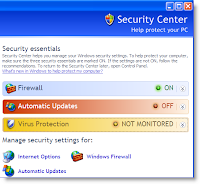
A firewall is a device or a set of devices, which can be implemented in any of the hardware, software or both. All the messages passing through the firewall are verified to meet some level of security criteria.

It acts as a computer security barrier, which analyzes all the incoming and outgoing traffic to and from your computer or network based on the firewall settings. There are some common types of firewalls like: Application level gateway, Packet filtering firewall, Circuit gateways and Hybrid firewall.

Application level gateway firewall works on the application layer of the protocol stack. It works more intelligently than the packet filtering firewall. Packet filtering firewall examines the information contained in the header of the message packets.

There are some factors based on which the filters can be added or removed from the firewall:

1. IP address

2. Ports

3. Protocols

IP address: Every computer connected to Internet has a unique IP address. The firewall configuration can be customized to block any IP address so that your computer will not allow any kind of communication to take in between.

Ports: The firewall can be configured to allow or block messages from any port number.

Protocols: There are some commonly used protocols like IP, HTTP, TCP, FTP, and SMTP etc., which can be included in the firewall filter.

Some operating systems, such as Microsoft Windows offer built-in firewalls that are turned on by default to block all the incoming threats from Internet. There are several other third party firewalls available. You can choose any one the firewall to replace the default firewall in Windows.


Monday, January 25, 2010

Install Printer

printer

Know how to install printer on Windows XP computer

Before installing a printer on Windows XP operating system is to have suitable printer driver for the printer you are installing. There is no need to worry if you don’t have a driver disc. You can use the printer driver provided with by the printer manufacturer in the form of disc or you can also download the latest printer drivers from the manufacturer’s website. Follow the below mentioned steps to install printer on Windows XP system (assuming that you are installing the printer on a Windows XP computer and the printer is to be directly connected to the system).

1. Click on Start

2. Go to Control Panel

3. Click on “Printers and other Hardware”

4. Select “Add Printer” tasks from the task section to continue the printer installation.

5. You will see a “Welcome to the Add Pinter Wizard” screen, click on “Next”.

6. Select “Local printer attached to this computer” for printer connected directly to your PC.

7. Now click on “Automatically detect and install Plug and Play printer” option (in case you don’t have any information about the make and model of your printer).

8. Click on Next.

9. Select a Printer Port from drop-down menu present where the printer is connected or you can choose to create a new port.

10. Click on Next.

11. Select manufacturer of your printer from the list of manufacturers available and then choose the model of you printer.

12. Click on Next.

13. If you have the latest driver on CD/DVD disc then you should click on Have a Disk button to select the specified printer driver.

14. If the correct are selected then Windows will automatically install the files on your computer.

15. You will see a Printer icon in the Printer and Faxes section in Control Panel after the successful installation of the printer on your computer.

You can further make changes to the printer setting and feature by selecting the properties of the printer and selecting the desired settings.


Wednesday, January 13, 2010

Easy Online Support for Windows Registry

technical support
The windows system Registry has been called the most important part of any Windows PC operating system (OS), but you probably didn’t even know it exists. There is a good reason for that. Microsoft doesn’t want you messing with it. Like so many other features in Windows, Microsoft chose to hide information considered too powerful to be left in the hands of mere mortals. Only the wisest of gurus can be entrusted with such knowledge.
The registry controls everything and a single mistake can have devastating consequences on the entire OS. Installed programs and applications will write important data into the registry. User defined data and configurations are also stored.
The data is tracked through a tree of folders and it’s called “keys” that branch off the registry nodes. Every key can have sub keys nested in multiple levels. Its data known as “values” are stored in the keys and sub keys. Groups of related keys, sub keys and values are known as hives.
Applications can modify the keys by changing the values, adding new keys or deleting existing ones. More recent versions of Windows will back up the registry and in the event of a problem, will ask you if you want to use the “Last known good configuration.” This was an option that began in the old Microsoft Windows vista days.
The good news is that such configuration issues related to the registry will not affect your important data like documents, photos, etc. The bad news is that many times the problem that caused the crash in the first place may also be saved in the backup versions of the registry.
Many software programs exist to examine registry the keys and make any necessary repairs. These programs can even check your registry for unused keys that clog your system. Removing these keys can significantly improve performance.
For more information on the Windows Registry, check out the Microsoft software support program.

Tuesday, January 5, 2010

Computer install to get the desirous software

Install Software
In today’s computer world no software is the ultimate one. As developer are working deliberately to give the best to the users. Hence, computer install is an essential part, both for beginner and the experts.
For critical software install user can take the help of reputed organization who are offering remote support for installation purpose. But, you must be aware of some general installation procedure so that you don’t have to frequently call them up.
Let’s get acquittal with installation of some important software program on your computer.
Installation for Security software and web browsers
Users can make use of CD/DVD of the latest security software like Windows Defender, Spyware Doctor, No adware and so on. For browser you have plenty of options, you can go for Firefox, Opera, IE 8. If you have the internet connectivity you may go for online download from authentic sites. General steps can be followed as:
STEP 1. Download and save the startup program to a desired location.
STEP 2. Run the setup file and proceed on following the prompts.
STEP 3. Accept the agreement and enter the suitable key words.
STEP 4. Click on “Finish.” Restart your system.
Communication has been revised well with the latest email clients. Programs like email client can be installed internally from the web browser.IE 8 have been designed to automatically launch your default email client.
However, if you have the ambition to install a different email client on your computer, you can change your default client in the browser's Internet Options menu. Proceed as follow:
STEP 1. Explore the Internet Explorer.
STEP 2. Navigate on to the "Tools" menu and select "Internet Options."
STEP 3. Select the "Programs" tab.
STEP 4. Click the button "Set Programs." Select "Set Your Default Programs" from the window that appears.
STEP 5. Select your email client from the list of programs on the left side of the screen. Next, click "Choose defaults for this program."
STEP 6. Check the box next to "Mailto" and click "Save."
Hence, you have got your preferred email client installed on your computer. Hope, that the above computer install article would be useful for you.

Computer System Optimization & Security

Technical Support
Computer optimization can be understood as the vital tonic to boost up the system. It has become the major area of concern for the users. Many computer support firms are making campaign for computer optimization. They are making use of troubleshooting techniques and implantation of third party software to resolve the issue.
I will concentrate this blog to resolve some general issues. Unfortunately you may face issues where your screen freezes and programs stop responding. Even you are unable to close the windows of some application. This is the disgusting situation. The reason behind could be scarcity of RAM, infection of virus or fault in windows registry.
Notice the time of the freezing, in majority of the cases your system will be able to restore the normal condition by default without any attempt. But if the things are not in favor bring out the Task Manager utility with simple keyboard activity: Press the ‘Alt’, ‘Ctrl’ and ‘Del’ buttons all at the same time. You would land to a Window format, now scroll down the program which is causing the error and choose to end the program. Now, again you can start the program and get the normalcy.
Note: Lower value of RAM is the prime reason behind hence to avoid regular repetition you may upgrade the RAM.
However, you may not be lucky every time. If the concern is not addressed with the Task Manager then the root cause may be virus infection or corruption of Windows registry.
If you don’t have any compatible anti-virus, than opt for the best one available in the market. Some trusted names includes, McAfee, Bitdefender, Kaspersky and so on. Before making download, make sure that they are compatible to your windows platform. The role of the anti-virus program is to scan and remove any virus, spyware, malware, keyloggers, rootkits and so on and do the computer optimization.

Many independent software are available for computer optimization which can fix, Error messages, slow performance, slow internet browsing and many more within few minutes. Some of the best are RegCure PC optimizer, XoftspySE.

Monday, December 21, 2009

Have A Quick Look On Free Anti-Virus And Anti-Spyware For Windows 7

windows 7Now that Windows 7 has been released for all the consumers worldwide, We think this is the right time to have a look on top recommended Anti-virus and Anti-Spyware solutions which are suitable for latest Windows 7.

As we already know that Windows is by far the best candidate as compare to others operating system (Linux, Unix). Unfortunately because of which it is prone to virus and spyware attacks. If you want to stay free from viruses, it is very essential to have the right Anti-Virus solution installed which is both effective and light on system resources. Among of these various free Anti-Virus programs that are available on the Internet, let’s take a look at some of the best free Anti-Virus programs that are suitable for Windows 7 systems.

AVG Anti-Virus Free Edition 9.0

AVG AAVG antivirusnti-Virus Free Edition is another very common and popular and absolutely free Anti-Virus software whose version 9 not only just works perfectly under Windows 7, but it also provides free Anti-spyware protection. AVG is also popular among masses for its easy to use user interface which is both attractive and user-friendly with bunch of options to customize the behavior to one’s liking.

AVG Anti-Virus 9.0 offers several enhanced features like:

● It prevents hackers and viruses from spreading over the Internet.
● It screens your downloads for malicious content.
● It provides real-time protection from poisoned web pages.
● It has Web Shield that lets you download and exchange files without risking virus infections.
The free edition of AVG Anti-Virus version 9.0 can be downloaded from its official website.

Avira AntiVir Personal 9

Avira AntiVir is a popular and perfect Anti-Virus application. It is one of the most highly rated free Anti-Virus software by both technicians and users for its ability to scan quickly and efficiently.

It is light on system resources and gives real time protection against viruses and spywares with its AntiVir Guard technology. AntiVir also allows updates the antivirus+antispyware database right away during installation so that you are ready for a thorough full system scan right after the installation is completed! The latest version 9 of Personal edition is completely free for private use and is compatible with Windows 7.

Avira AntiVir Personal 9 offers several enhance features like:

● Guard (On-Access Scan) for continuous monitoring of all file access attempts.
● Scanner (On-Demand Scan) with profile-controlled and configurable search for all known types of virus and malware.
● Extremely high virus and malware detection via innovative scanning technology (scan engine) including heuristic scanning method.

Microsoft Security Essentials

Here is one more but very popular Anti-Virus solution, Microsoft Security Essentials. It is a free Anti-Virus solution from Microsoft which is both easy to install and maintain with automatic updates.

It is light and provides real-time comprehensive malware protection for home PC against viruses, spyware, and other malicious software. One of the best thing of Security Essentials is that it runs quietly and efficiently in the background without much interruption or interaction required in the user’s part.

Sunday, December 20, 2009

Windows 7 Guide For Wireless Networking

windows 7 updateWindows 7 is ready for all types of private networking at present in use, everything from the kind of Domain, Work-Group, peer to peer networks you set in the home (referred to as a homegroup) to small-scale local area networks (LANs) and wide area networks (WANs) in business.

Microsoft introduces Windows 7 update wireless networking, help you to configure and manage wireless connections with a various range of wireless devices that search and connect to wireless networks also known as Wi-FI.

With Windows 7 its easier to create a Wi-Fi network through Connection wizard. Users can easily connect to an available wireless network with a security key or manually connect to one not recognized. As you go through the manual process, you'll specify a network name, called the(Service Set Identifier).

Windows 7 simplifies the way you transfer your wireless setting from one system to another. It was the major irritation till date because to remember the security key is not an easy task and any mistake can puzzle you for hours or so.

you can easily take a back up of wireless networks settings on a USB drive and import it to another machine irrespective of on what OS other machine is working.

Windows Connect Now is one of the technology designed for simpler wireless device configuration. Now with Windows Connect its easier to create a wireless network at home or office. When you connect to a compatible router, Windows will walk you through all the necessary setup steps including naming your network and turning on the router's security features. Now you don't need to remember network settings when you connect a new computer. All you have to do is press the Wi-FI Protected Setup button on your router and it will automatically send the network settings to your computer. With Windows connect Now, users running Windows 7 can create network configuration settings and transmit them to the access point. Windows Connect Now (WCN) allows mobile and embedded devices, 802.11 access points (APs), and computers to securely connect, and exchange settings with each other. It allows you to easily set up a secure wireless network by using a USB cable or USB flash drive. Windows Connect Now uses one of the methods for easier configuration.

WCN-NET is Microsoft's standard for easier Wi-Fi configuration. It provides for configuration of devices using Ethernet in Wireless networks. In Windows it can search an unconfigured router, access point, base station or a device such as a Media Center Extender by using Upnp, authenticate with the device by using a personal identification number, provide wireless settings that are based on user selection and configure a wireless network over a wired Ethernet connection.

WCN-UFD writes configuration files to a USB drive for more secure wireless networks. It uses an API and an XML format to write configuration files.

WCN-MTP includes a Media Transfer Protocol (MTP) extension that enables an MTP initiator to provide an MTP responder with configuration parameters for joining a wireless network and supports more secure configuration of MTP-capable devices on wireless networks.
